

This tutorial demonstrates how to send a real-time 1-2-1 private chat using Seniorchatters.
Go to seniorchatters.co.uk
1. Introduction
You will learn how to navigate the Seniorchatters chat interface and send personalized 1-2-1 private messages.
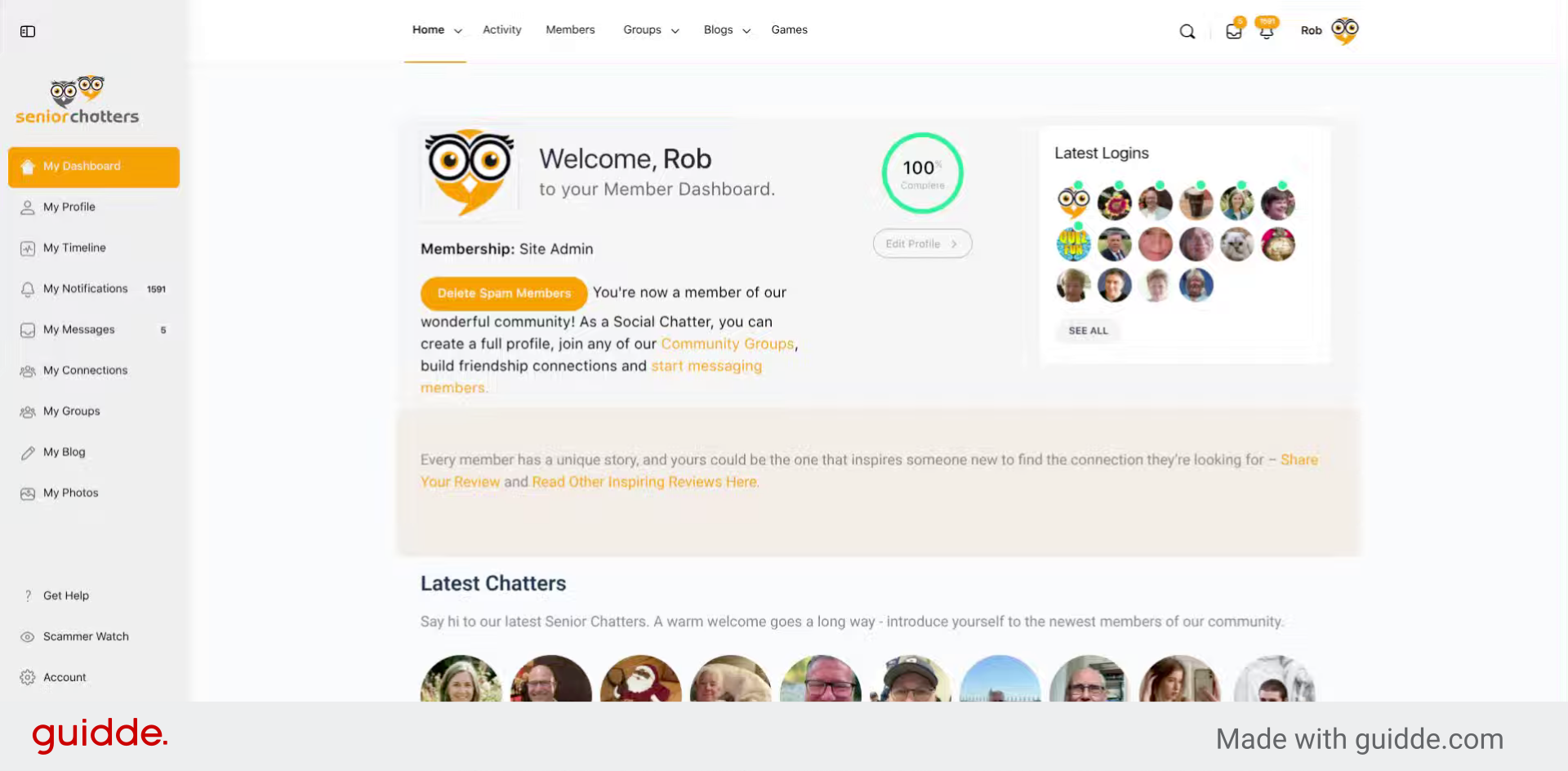
2. Open Chat Section
Click the Chat bubble in the lower right hand corner to open the main chat interface panel
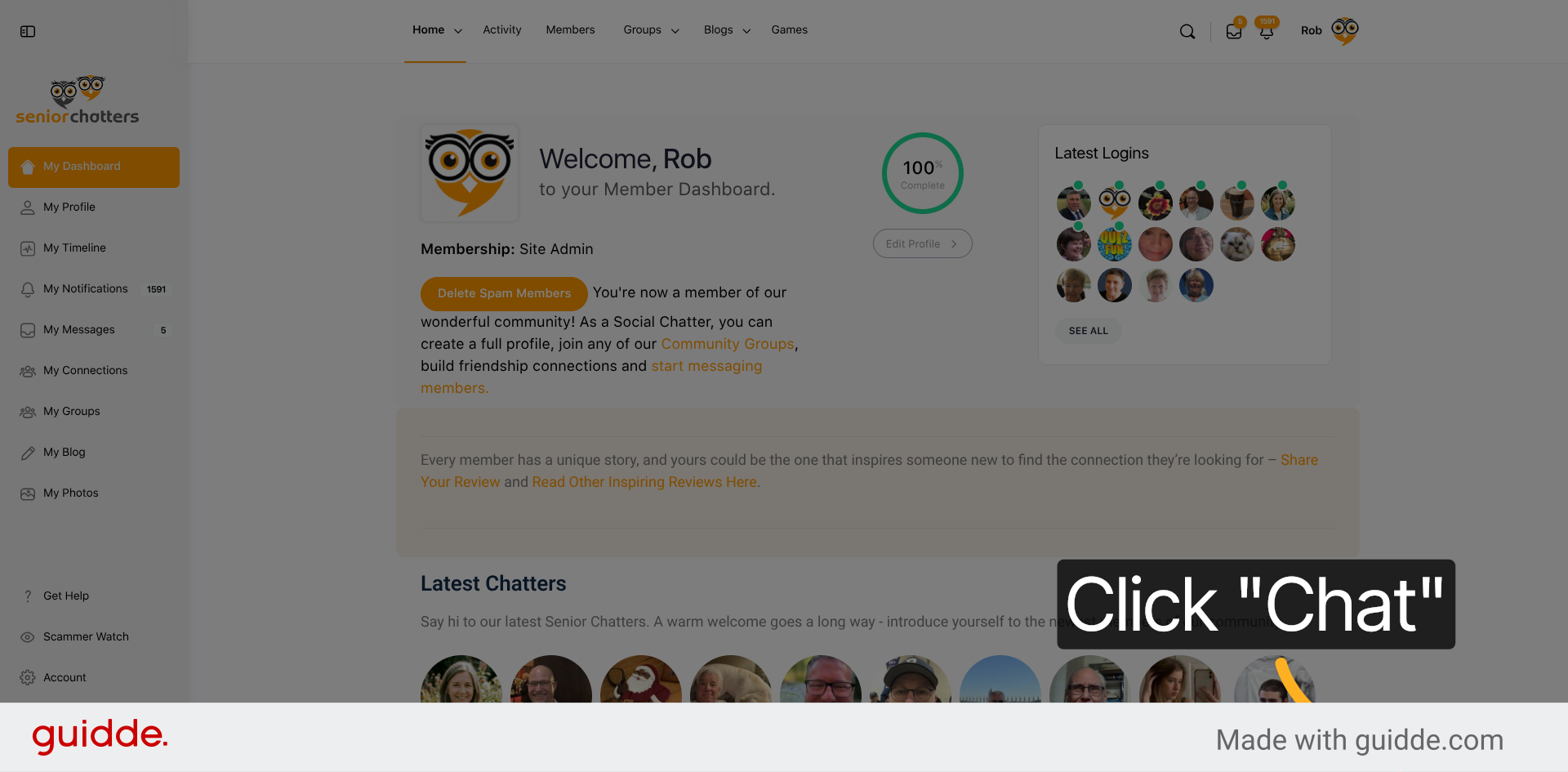
3. Select Chat Contact
Click a username from the list of currently online users to request a private chat with that user.
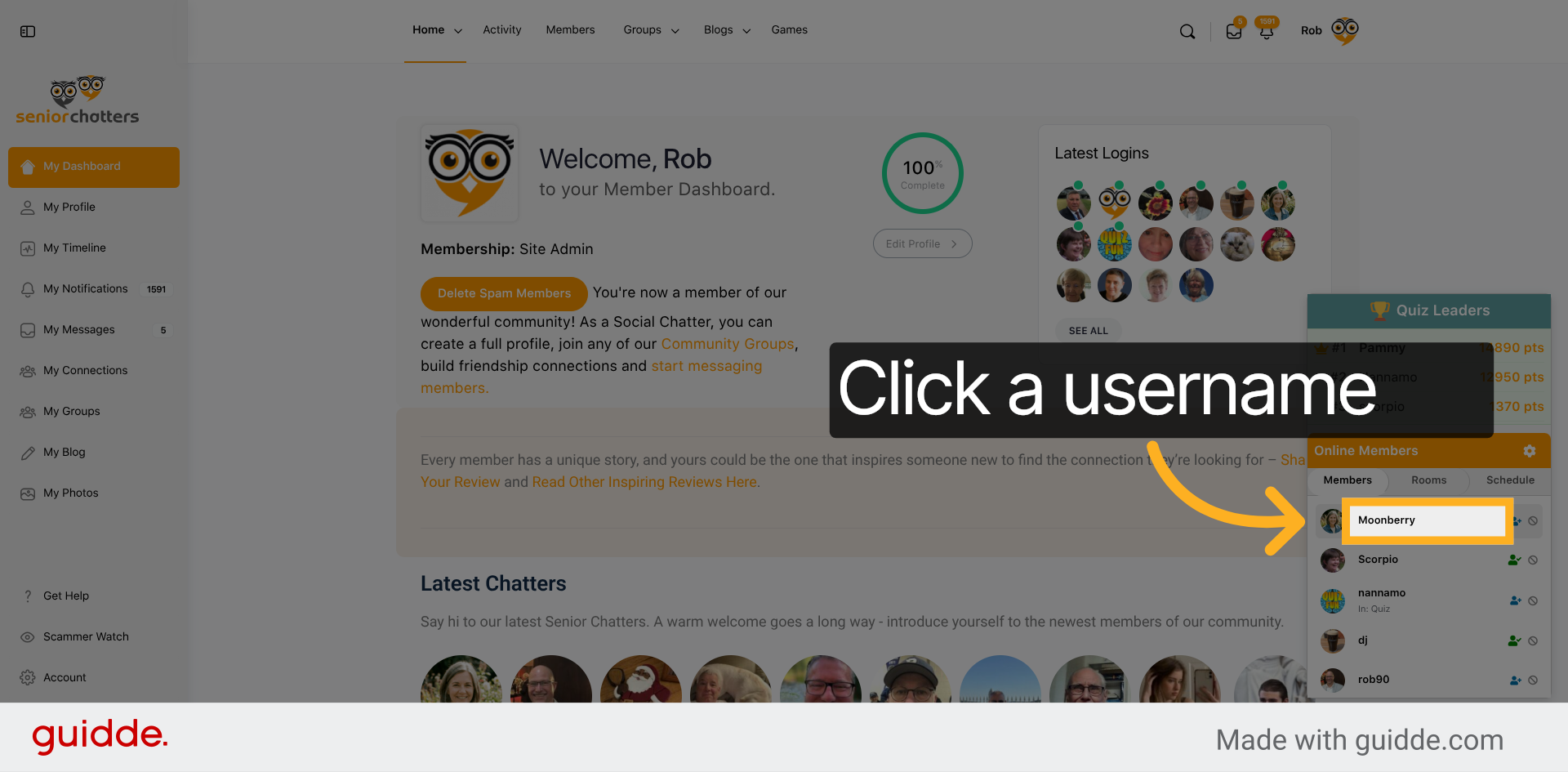
4. Activate Message Input
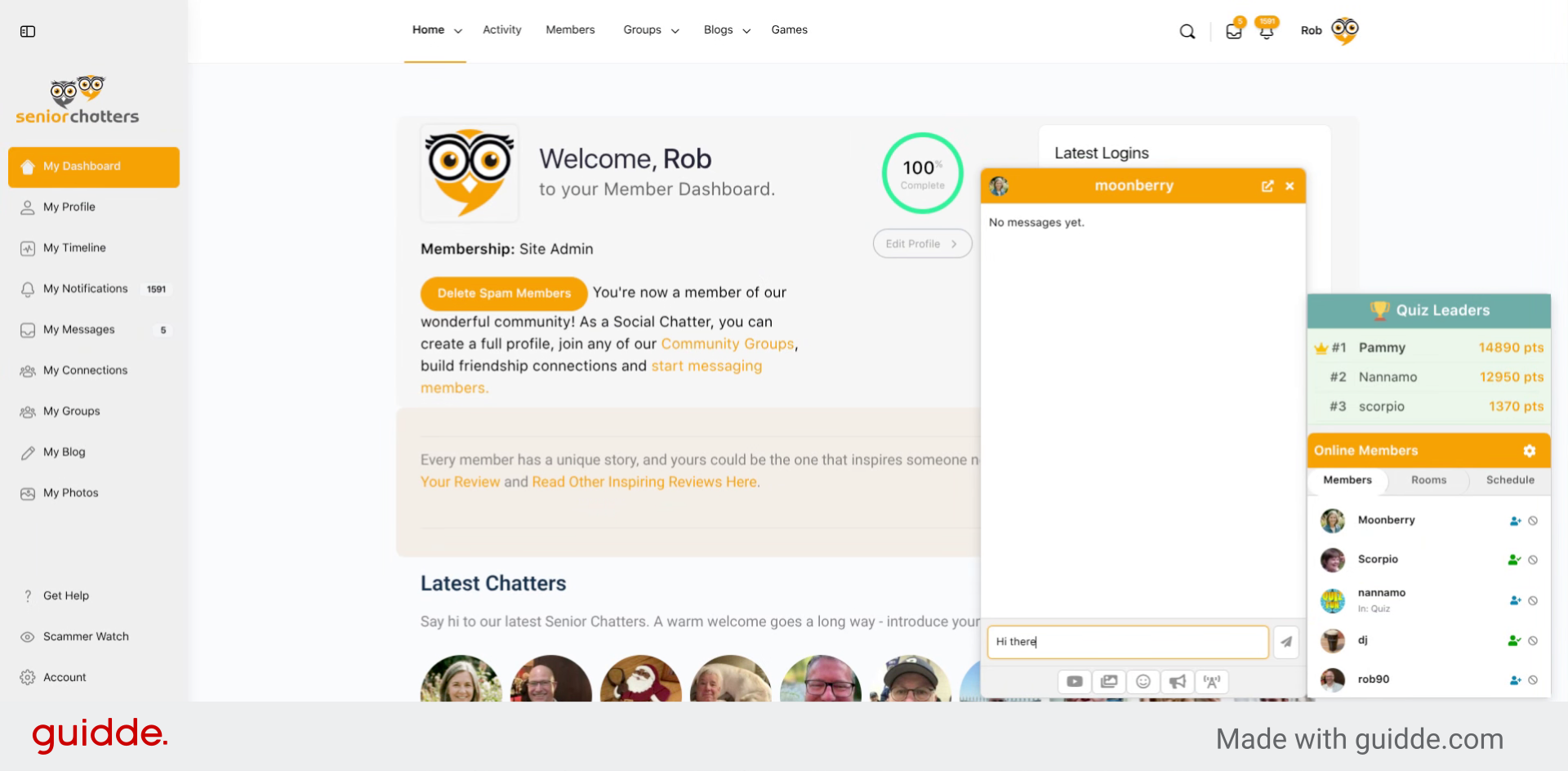
If the user accepts your request to chat, the chat message interface screen is launched and you can type your message in the chat input field.
5. Enter Initial Greeting
Enter your greeting in the message input field.
6. Reactivate Message Input
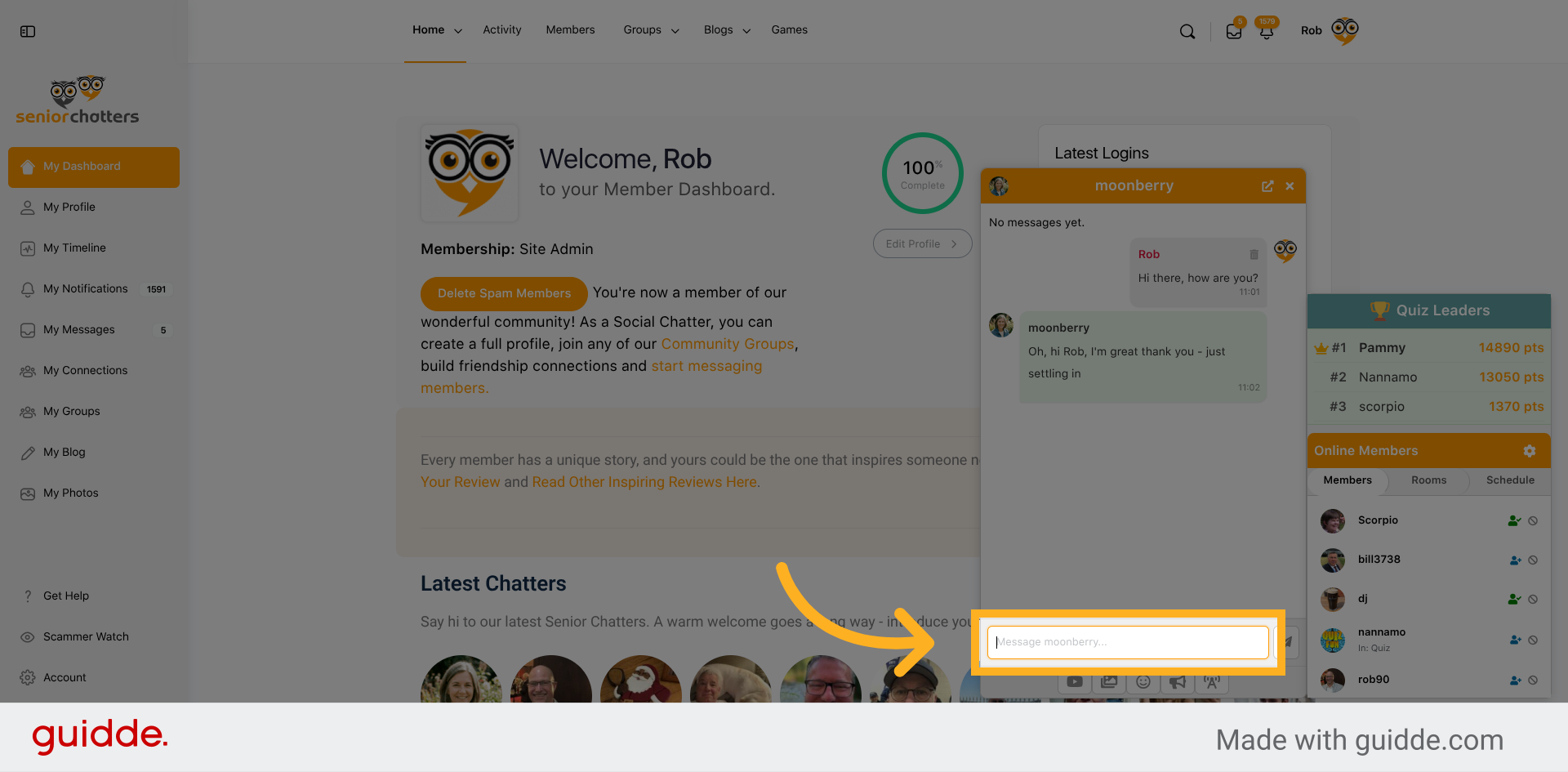
Simply hit the ‘Return’ key or click on the paper plane icon to post your message to the screen
7. Type Follow-Up Message
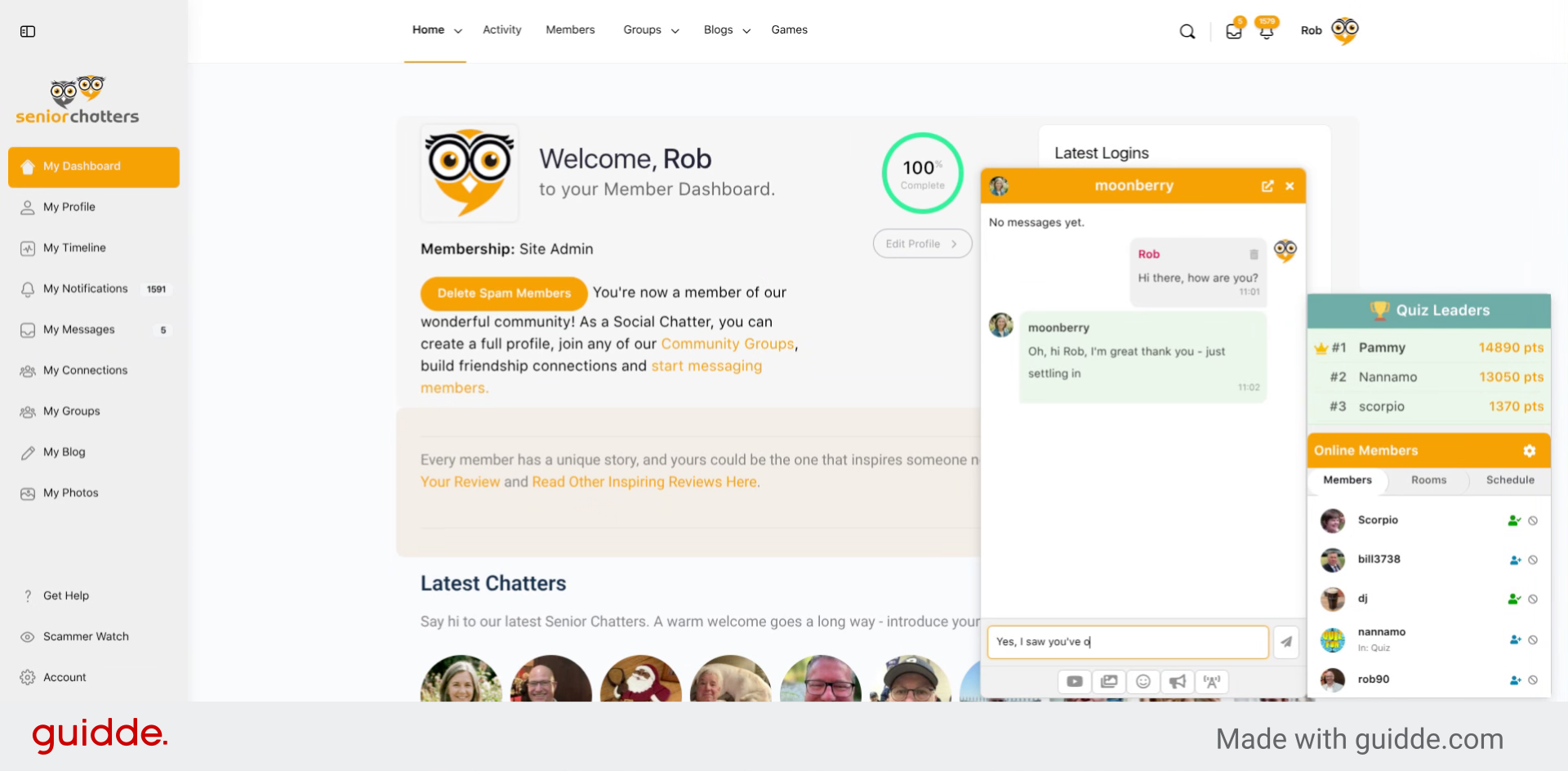
When the recipient replies their message will appear in green on your chat interface screen and the conversation can begin
8. Continue The Conversation
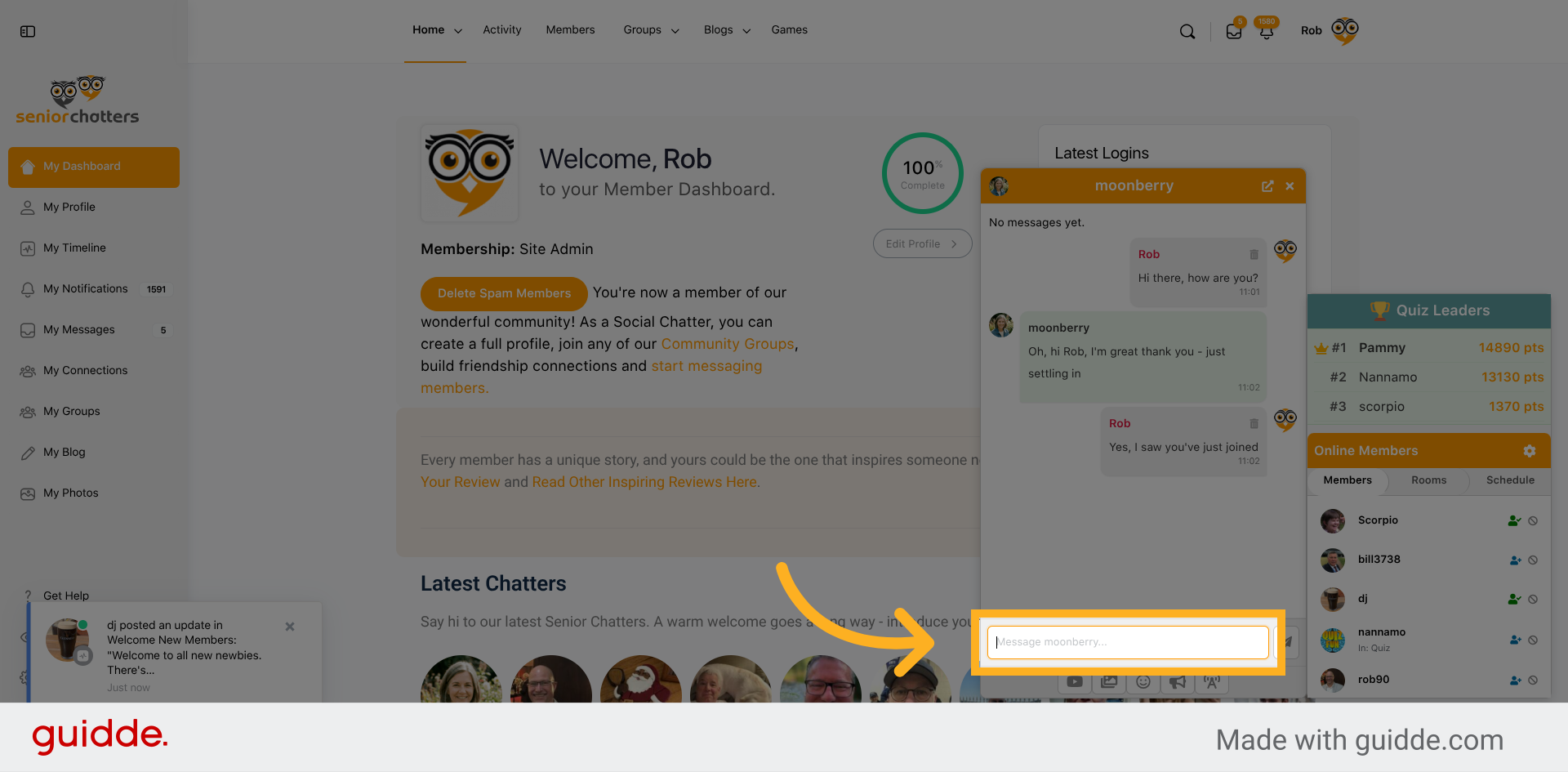
Continue the conversation back and forth
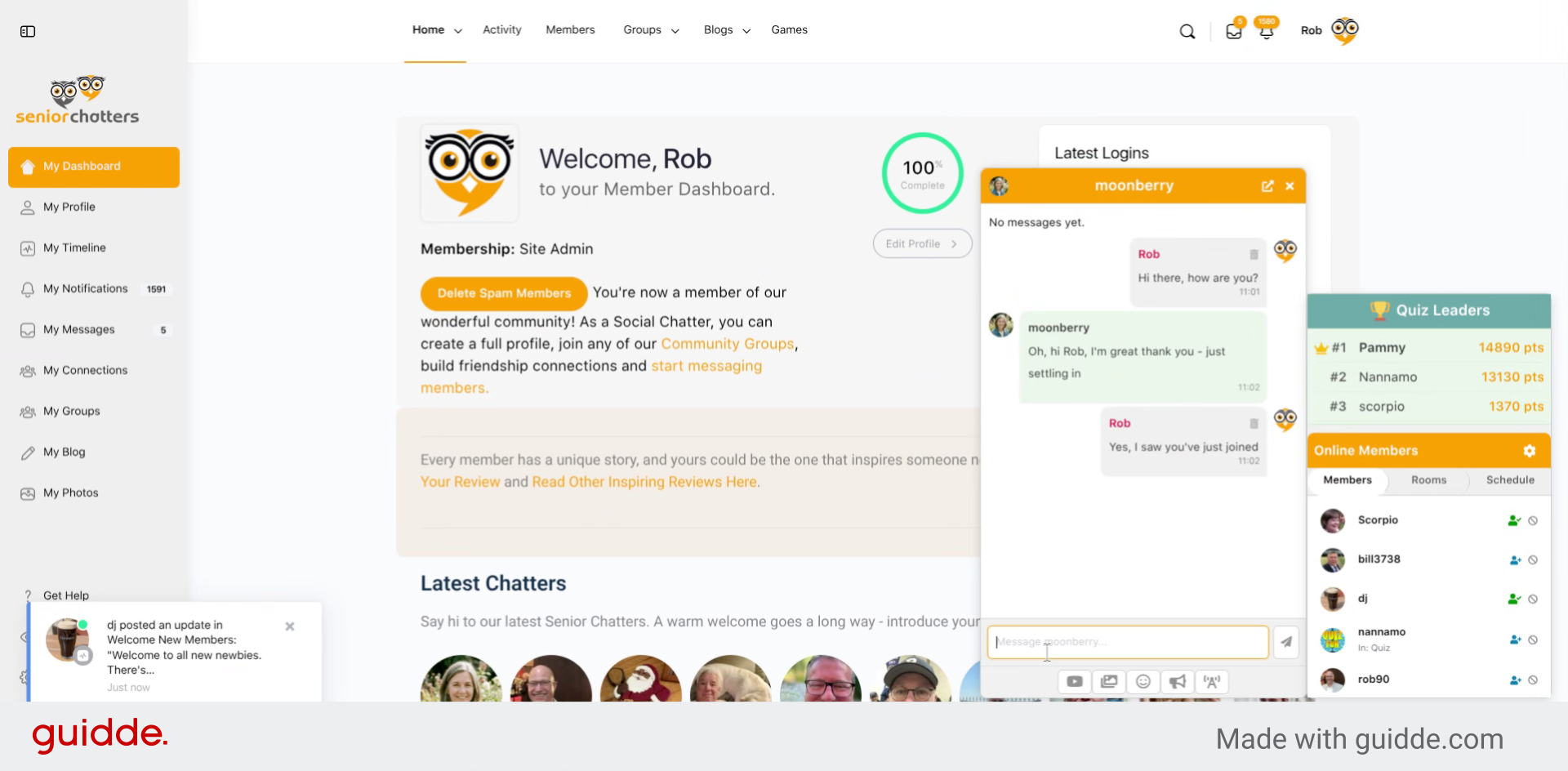
9. Enter Welcome Message
10. Click Input Field
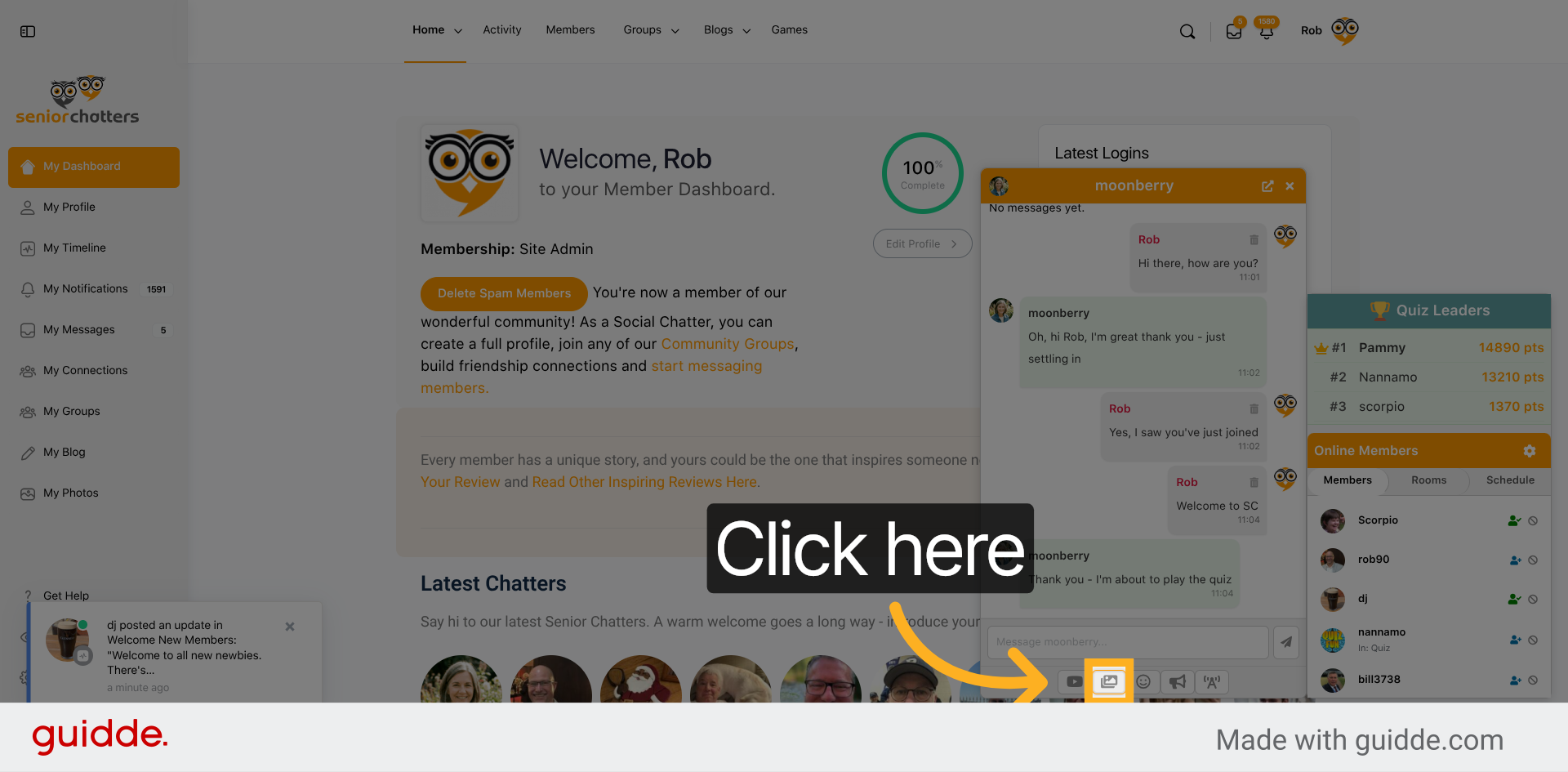
Clicking on the footer icons in the chat interface enables to you to embed emojis, gifs, videos, sound effects and even listen to our pre-selected radio stations!
11. Click Search Result
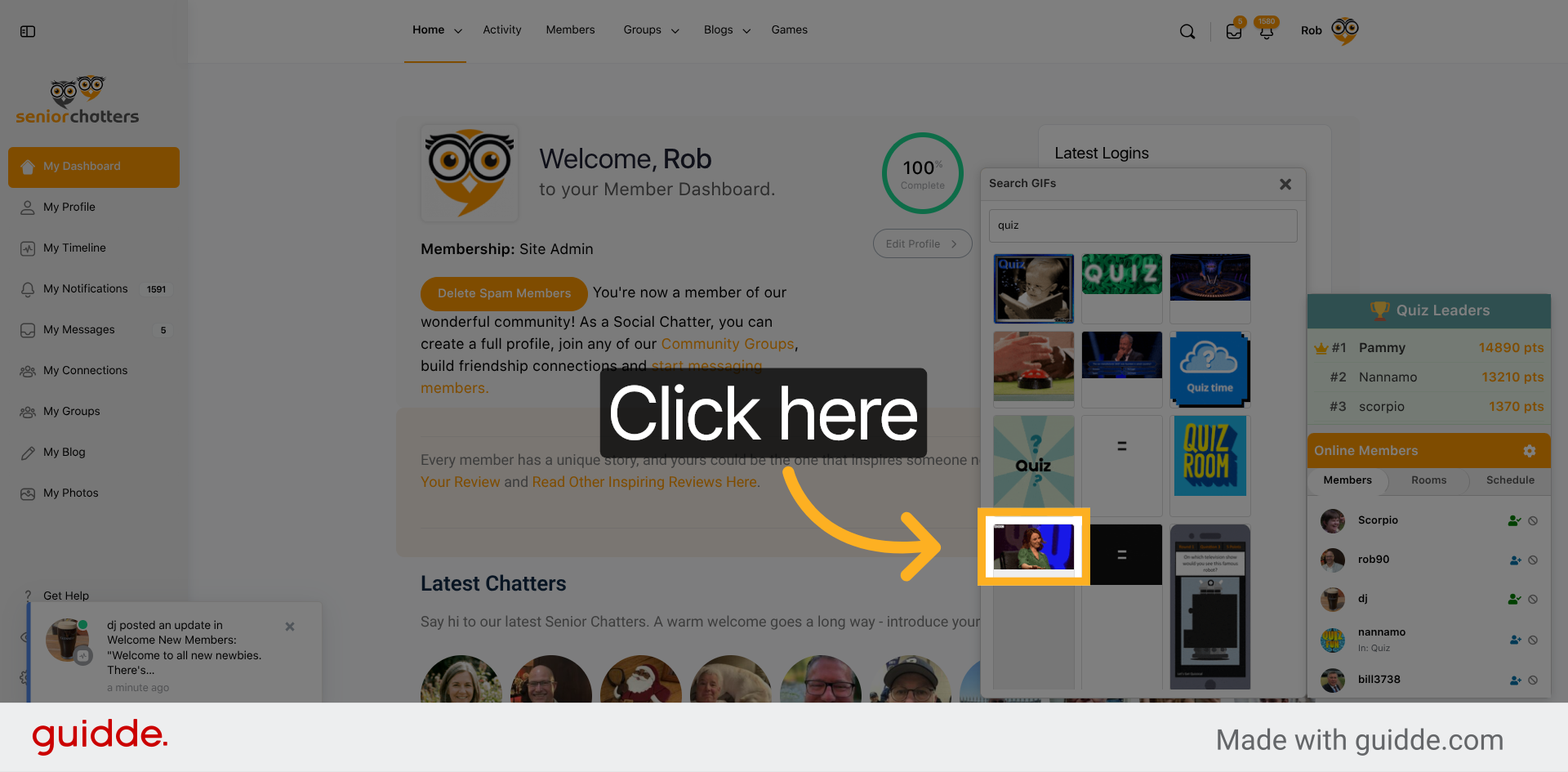
Here we’re embedding a gif into the conversation
12. Fill Message Field
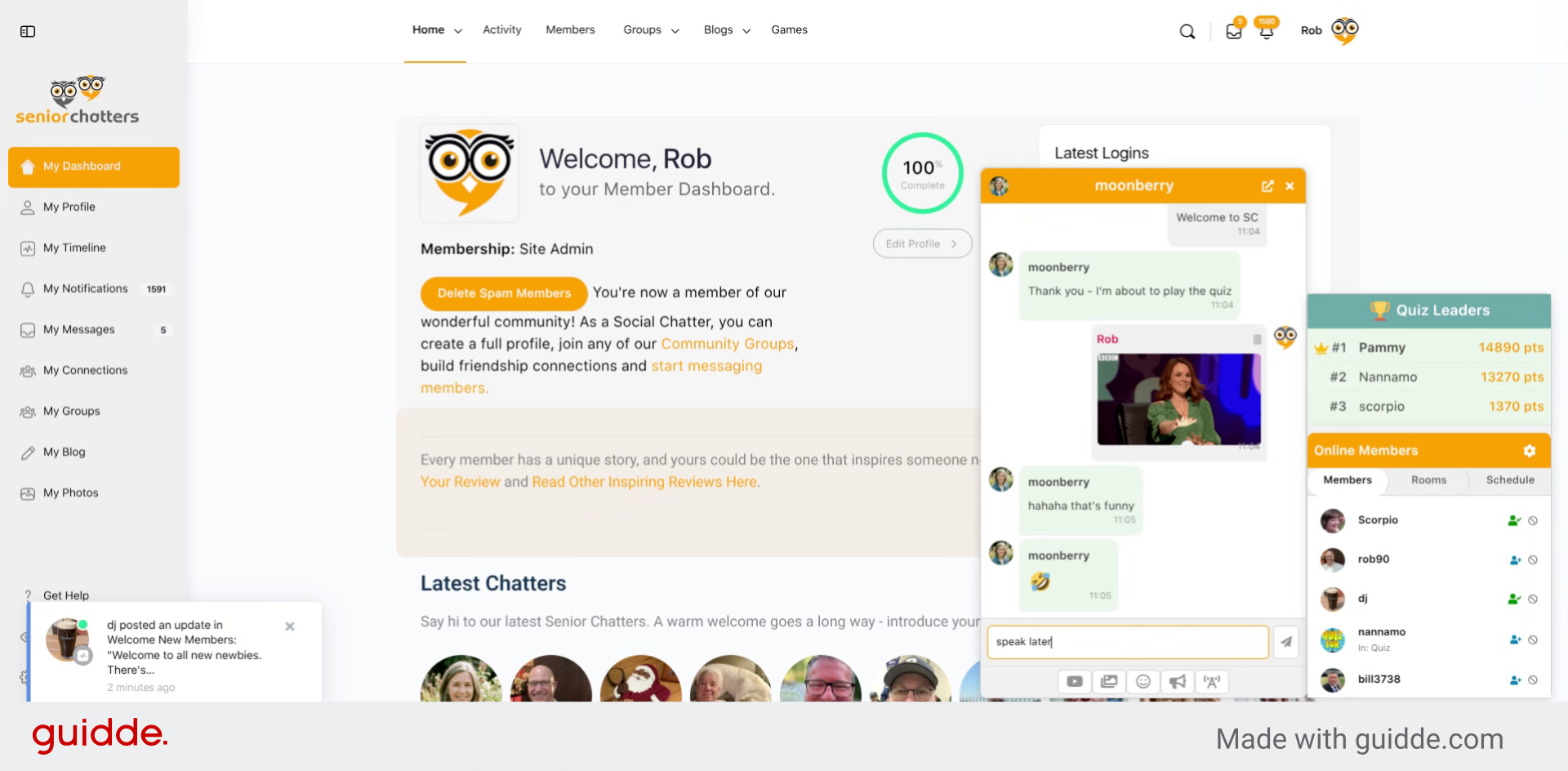
The GIF is posted to the chat window and the conversation continues.
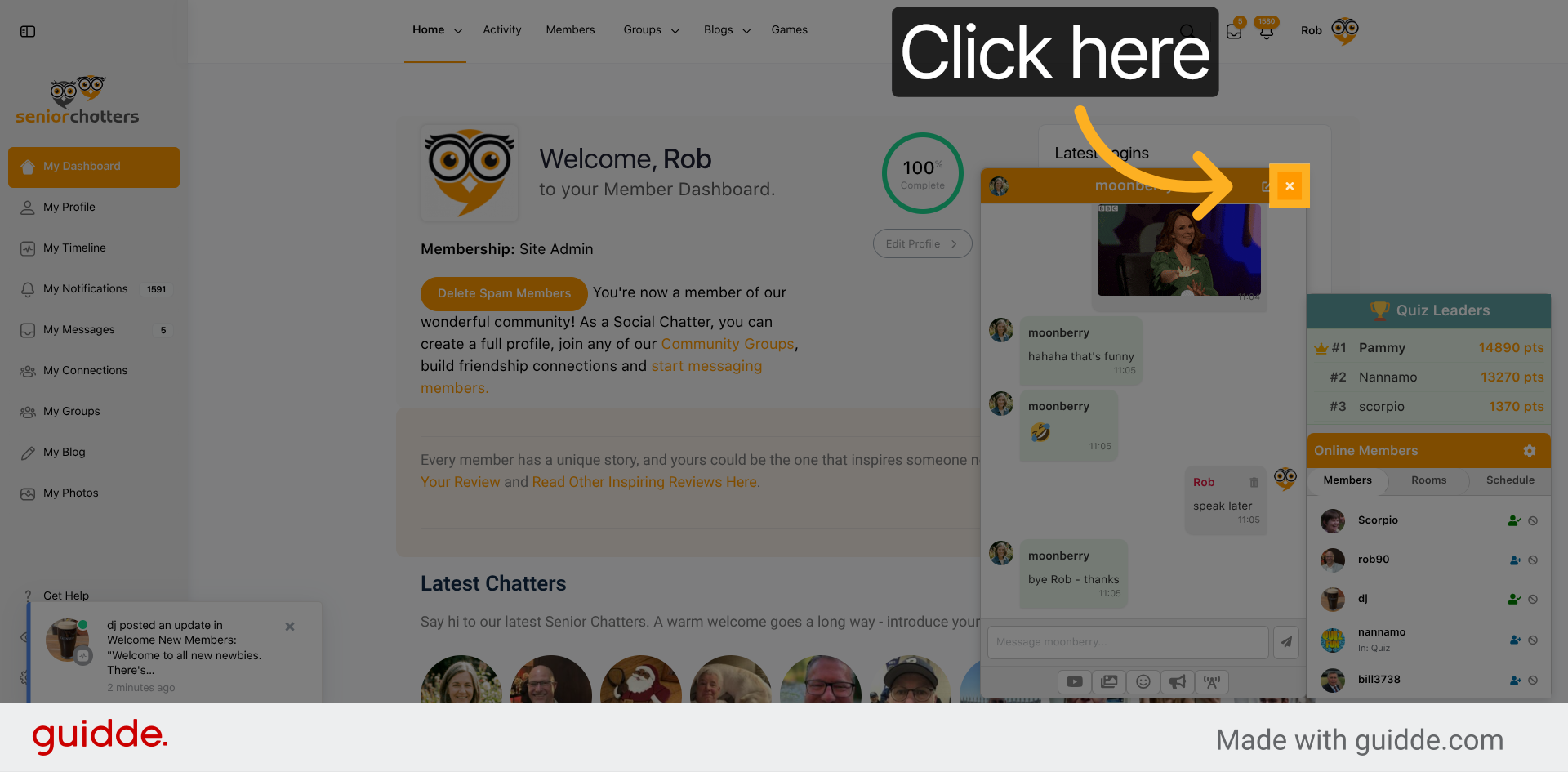
13. Exit the Private Chat
Click the X in the top right of the private 1-2-1 chat window to end the conversation.
By following this guide you will successfully be able to send multiple real-time private messages using Seniorchatters. This process enables effective one-on-one communication within the chat platform and multiple private chat windows can be initiated at the same time.